Verpex pitches its WordPress hosting on LiteSpeed servers, NVMe storage, and a feature stack that looks strong on paper. After signing up, installing WordPress through Softaculous, loading a full theme with demo content, and running it through GTmetrix from Frankfurt, I found the performance numbers that back up that pitch.
The GTmetrix performance landed at 92%, which is highly impressive. There is more to cover beyond the speed results, so read on for the full picture.
I scored Verpex WordPress Hosting using the standard HostAdvice rating methodology. We apply this same evaluation framework across every provider on this site. Learn more about our comprehensive rating methodology.
Here’s how Verpex performed:
| Category | Score | Why This Score |
|---|---|---|
| Prices | 9.1/10 | Affordable plans with significant discounts. Renewal rates increase after the first term, which is worth factoring in before committing, plus the 30-day money-back guarantee |
| Features | 9.1/10 | LiteSpeed servers, NVMe storage, Imunify360, free daily backups, free migration, and cPanel with Softaculous across all plans is a strong bundle. Higher tiers give you access to more features |
| Performance | 9.5/10 | GTmetrix Grade A from Frankfurt with 92% Performance Score on a fully populated WordPress site. 1.3s LCP, 0ms TBT, and 0 CLS. Outstanding results |
| Ease of Use | 9.2/10 | Registration is straightforward. The client area follows a logical layout. WordPress installed via Softaculous in under a minute with no configuration required beyond selecting a version |
| Support | 8.8/10 | Live chat connected instantly. The agent gave a technically accurate answer about LiteSpeed caching and Redis support in under a minute, though the conversation quickly shifted toward sales. The ticket came back in 31 minutes with a clear, accurate answer on WordPress update management |
| Overall | 9.0/10 | Verpex delivers solid WordPress hosting performance. It’s a well-rounded option for bloggers and small business owners who want reliable performance without managing server infrastructure |
Verpex offers its WordPress hosting across three tiers: Basic, Plus, and Premium.
For each plan, Verpex offers a 30-day money-back guarantee to test its features. If you have an issue with the hosting plan within this period, you can request a refund.
To use Verpex, you can pay for an account using PayPal or major credit and debit cards.
One thing to note is that after your first payment, renewal rates increase. Verpex offers generous promotional discounts that reset. I recommend signing up for a longer billing cycle to save your business money.
I then tested a website hosted on Verpex servers to see how it holds up.
Before running any tests, I built the site out the way a real WordPress site would look. I installed a theme, imported full demo content including images, multiple pages, and menu items, and added a standard plugin stack.
Testing against a blank WordPress install would not give an accurate picture of what your visitors will actually experience.
I ran the GTmetrix test from Frankfurt, Germany, which is both a neutral benchmark location and the closest major test node to most European data centers. I ran the test twice and used the most consistent result.
GTmetrix Results:
| Metric | Result |
|---|---|
| GTmetrix Grade | A |
| Performance score | 92% |
| Structure Score | 98% |
| Time to First Byte (TTFB) | 720ms |
| First Contentful Paint | 1.1s |
| Largest Contentful Paint (LCP) | 1.3s |
| Total Blocking Time (TBT) | 0ms |
| Cumulative Layout Shift (CLS) | 0 |
| Fully Loaded Time | 1.9s |
Understanding the Results
A GTmetrix Grade A with a 92% Performance Score on a fully built WordPress site is a genuinely strong result for shared hosting.
I was also impressed by the Structure Score, which came in at 98%. This result tells me the site configuration is close to optimal, and the performance score reflects how the server delivers that configuration to a visitor’s browser. Together, they paint a picture of a platform that is both well set up and quite fast.

The TTFB of 720ms is the one metric worth examining closely. It breaks down as 289ms for the connection and 431ms for backend processing. For a shared hosting environment without additional caching configuration, 720ms is acceptable, though it is the area where further tuning would have the most impact.
LiteSpeed Cache, which Verpex runs on all plans, significantly reduces this figure for repeat visitors once the cache is warmed, since subsequent page requests serve from the cache rather than going through full backend processing each time.
The LCP of 1.3s is the metric that matters most for both user experience and search rankings. Google’s Good threshold is 2.5s. Verpex cleared it by more than a second on a populated site with images and full demo content loaded. That result means the main content of the page appeared on the screen quickly enough that most visitors would not notice any wait.
A TBT of 0ms means no JavaScript caused the page to freeze during loading. The browser remained fully responsive from the moment the content began to appear. This result is not something every shared host achieves, particularly with a full plugin stack running.
The Cumulative Layout Shift of 0 confirms that the page loaded without any elements shifting, which is both a positive user experience signal and a Core Web Vitals ranking factor that Google takes into account.
Verpex WordPress hosting delivered results I would not hesitate to recommend at this price point. A Grade A GTmetrix result, 0ms TBT, a 1.3s LCP, and a 1.9s fully loaded time on a real site with real content running are figures that hold up well against more expensive alternatives.
The TTFB has room to improve with caching active, but the Core Web Vitals results are the numbers that affect real visitors and search rankings most directly, and those are clean across the board.
If you run a WordPress site, the quality of customer support is critical. Poor support can lead to hours of downtime, ultimately affecting the delivery of your services.
Verpex claims to offer 24/7 customer support through these channels:
I decided to test ticket support and live chat, sending technical WordPress-specific questions to get a clear picture of how knowledgeable the team is and how quickly they respond.
From the dashboard, I could clearly see the “Manage support tickets” tab.

I created a new support ticket. Here, you’ll see all your tickets, what’s awaiting response, and closed tickets. I liked the layout, since it makes it hard to miss anything.

To submit a query, you need to pick a department. These are categorized into:

I picked “Support” and submitted this question:
“Hi. How are WordPress updates handled on Verpex hosting plans? Does Verpex apply automatic WordPress core updates, or is that left entirely to the site owner? I also want to know whether plugin updates are managed at the server level or whether I need to handle those myself.”
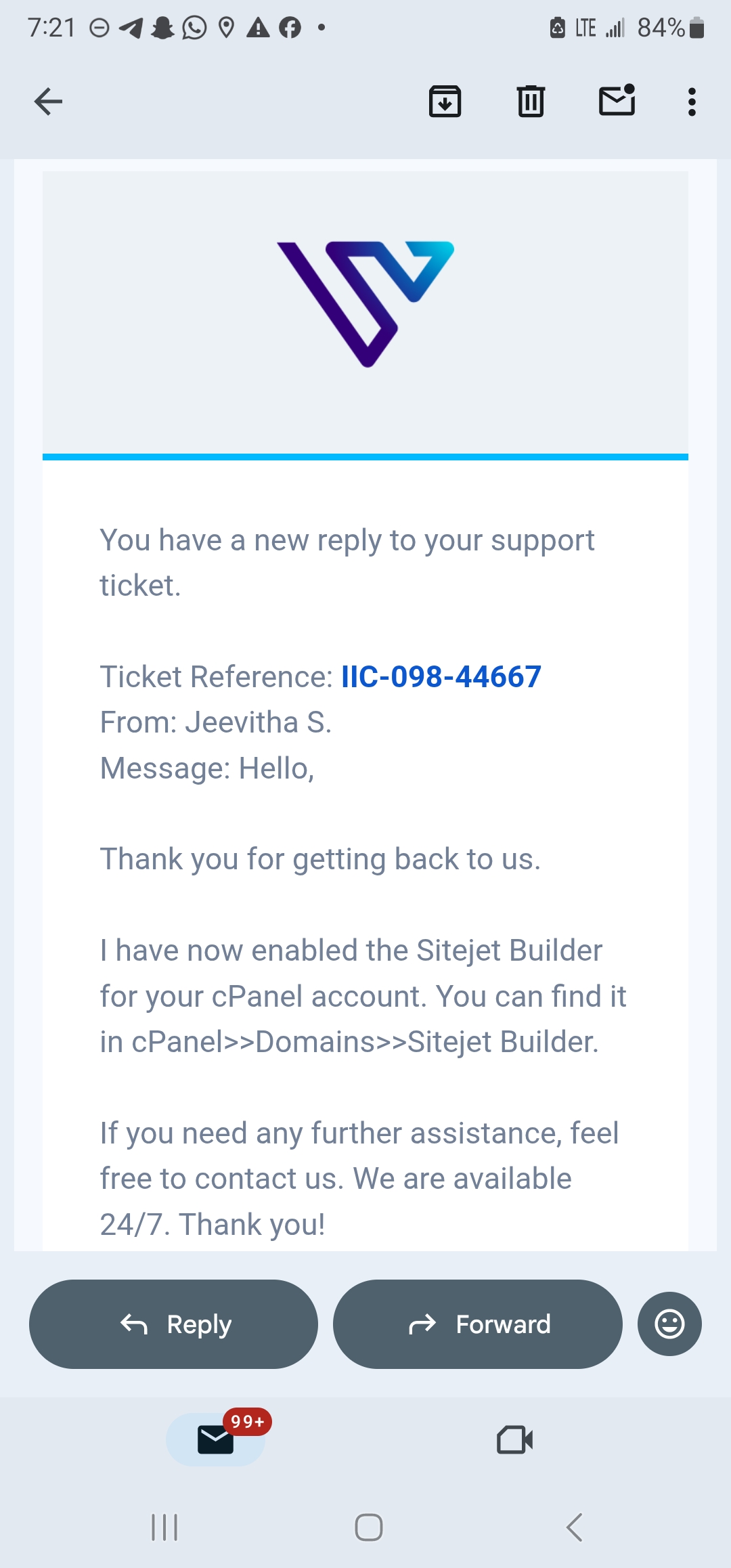
A response came from Sreevas M K, a Customer Care Representative, 31 minutes after submission.

The answer addressed all three parts of the question directly; WordPress core updates, plugin updates, and theme updates are all managed from the WordPress dashboard by the site owner.
Sreevas also noted that automatic updates can be enabled or disabled from within the WordPress admin area, depending on the owner’s preference, which is a practical detail that goes a step beyond a bare minimum answer.
While the answer is correct for standard WordPress hosting, it does not address whether Verpex applies any server-side guardrails around updates, such as staging checkpoints or rollback options, which would be the follow-up question a more technical user might ask.
My Assessment:
It’s hard to miss the live chat button. It’s right at the bottom right corner of the Verpex homepage.

Immediately, I received an automated greeting. The next prompt required me to fill in my details, including a support pin.

I asked this question:
“Hi. I’d like to find out how caching works on your Verpex WordPress hosting plans. Is there server-level caching in place, such as LiteSpeed Cache or Nginx FastCGI, or does performance rely entirely on a WordPress caching plugin?”
Orbi from the Sales Team joined the conversation instantly. His answer was technically accurate and more detailed than I expected from a sales agent. He mentioned Redis and Memcached support for database-heavy sites, which is a detail that goes beyond what most sales agents would volunteer unprompted.

What followed was familiar from my previous Verpex live chat experience. Once I mentioned I was in the early stages of a new project, Orbi shifted into a plan recommendation, listing pricing options and storage details for each tier.

The information was accurate and clearly laid out, but if you are looking for a purely technical conversation, the pivot toward sales comes quickly. The full exchange wrapped up in under a minute.
My Assessment:
Verpex’s support answered my questions accurately and without significant delays. Live chat is the stronger channel for speed, with Orbi delivering a complete technical answer in under a minute.
The caching explanation in particular went beyond what I expected from a sales agent, covering server-level architecture rather than simply confirming the feature exists.
The ticket channel is a reliable option for WordPress queries. Sreevas addressed all three parts of my update question in a single response in 31 minutes, which is a clean result. The absence of a dedicated technical support tier means that for more advanced infrastructure questions, answers may stop at the WordPress application level rather than going deeper into the server configuration.
If you’re a beginner or intermediate WordPress site owner, that support structure is more than adequate. Most questions at that level fall well within the customer care team’s scope.
I then evaluated ease of use, focusing on the registration process, the dashboard interface, hosting management, and WordPress installation.
From the Verpex homepage, I opened the “Hosting and Servers” menu and selected “Hosting for WordPress.”

Scrolling through the pricing tiers, I found the plan options laid out side by side with storage, site limits, and key features visible without needing to click into anything. I selected my plan and clicked “Get Started.”

The checkout page that followed handled everything in one place. I chose a billing term and selected a server location while reviewing the order summary on the left side of the screen.

I also had an option to register a new domain or use an existing one.

I was redirected to a new page to add my personal information before completing the checkout.

I liked that the billing summary updated in real time as I made selections, so the final total was visible throughout rather than appearing as a surprise at checkout.
In the Verpex client area, the dashboard is split into a left sidebar menu and a main content area. The sidebar gives direct access to Home, Products and Services, and Billing.

To view my support tickets, I had two options. I could click the “Manage support tickets” button at the top of the dashboard or scroll down to see the full list.

What impressed me about this layout is that active services, billing status, and open tickets are all visible immediately after logging in, which removes the guesswork of finding basic account information.
Next, I wanted to see how easy it is to manage your hosting services. This section is especially important if you want to access the control panel without contacting support.
From the dashboard, I navigated to “Products and Services,” opened “Hosting and Servers,” and clicked into my plan.

At a glance, I could see the IP address, server host name, domain name, and account status. Verpex also shows a snapshot of your current billing cycle and amount paid.

From the hosting management page, I could easily log in to my control panel, which opened directly to cPanel. Verpex gives one-click access for easy WordPress management.

Inside cPanel, I found WordPress Manager by Softaculous listed in the left sidebar.

One click took me to the WordPress management screen, where I could start the installation process. I clicked the blue “Install” button at the top of the page, which opened the installation form.

This step was also straightforward. I selected my domain URL from the dropdown, chose the latest WordPress version, and clicked “Quick Install.”

The installation completed in under a minute.

My first impression? The site was live, responsive, and running standard WordPress with no unnecessary additions injected by the host.

I could immediately tell the installation comes with pre-installed plugins. These additional tools are useful for beginners who are using Verpex WordPress hosting for the first time. It saves them one technical step.
Verpex keeps the path from signup to a live WordPress site short and predictable. The checkout handles configuration without splitting it across multiple pages, and the client area surfaces the information you actually need at login.
Softaculous removes all the technical steps from the WordPress installation process. From selecting a plan to having a working WordPress site with demo content took well under fifteen minutes in total.
For a first-time WordPress site owner, nothing in this flow requires prior hosting experience. For someone who has done this before, the process is efficient, with nothing getting in the way.
Verpex WordPress hosting is a genuine option for bloggers, small business owners, and developers who want strong performance on shared hosting without paying for a managed tier.
The GTmetrix results on a fully loaded site, Grade A, 1.3s LCP, 0ms TBT, and 1.9s fully loaded time, are the kind of numbers that take some hosts significant manual configuration to approach. Verpex delivers them out of the box.
The standard 30-day money-back guarantee gives you enough time to test your actual site rather than just a demo install, which is the right way to evaluate whether a host suits your workload. Renewal pricing is the main caveat to factor in before committing.
I would not recommend Verpex WordPress hosting for high-volume WooCommerce stores or heavily trafficked sites on the entry plan. Those use cases need the resource headroom of higher tiers or a VPS.
But if you run a content site, portfolio, small-business page, or a WordPress build that doesn’t carry thousands of daily visitors, this platform handles it well.
| Description | Expert Review |
|---|---|
| Read Reseller Hosting Review | |
| Read VPS Hosting Review |


Verpex does not apply automatic WordPress core or plugin updates at the server level by default. Updates are managed from the WordPress dashboard or through the Softaculous WordPress Manager in cPanel, where you can trigger updates manually or configure automatic update settings per install.
It depends on the plan tier. The entry plan supports a single website. Mid and upper-tier plans allow multiple sites on the same account. If you are managing more than one WordPress install, check the site limit on your chosen plan before signing up.
Yes, WooCommerce can be installed on any Verpex WordPress plan through Softaculous. For small- to medium-sized stores, the mid-tier plans provide sufficient resource headroom. For larger stores with higher transaction volumes or complex product catalogs, the top-tier plan or a Verpex VPS would be a more appropriate fit.
All WordPress plans include Imunify360, a comprehensive security suite covering malware scanning, a web application firewall, and intrusion detection. Free SSL certificates are included across all tiers, and daily backups are available on all plans for recovery if anything goes wrong.

Answer a few simple questions and find the perfect solution for you!
Start Hosting Search